
October 21, 2026 · 10 min read
Restaurant Menu QR Codes: Print Size, Placement and Testing
Customize and download your QR code in iMango, then choose print size, preserve the quiet zone and test its placement before printing the batch.
iMango Team
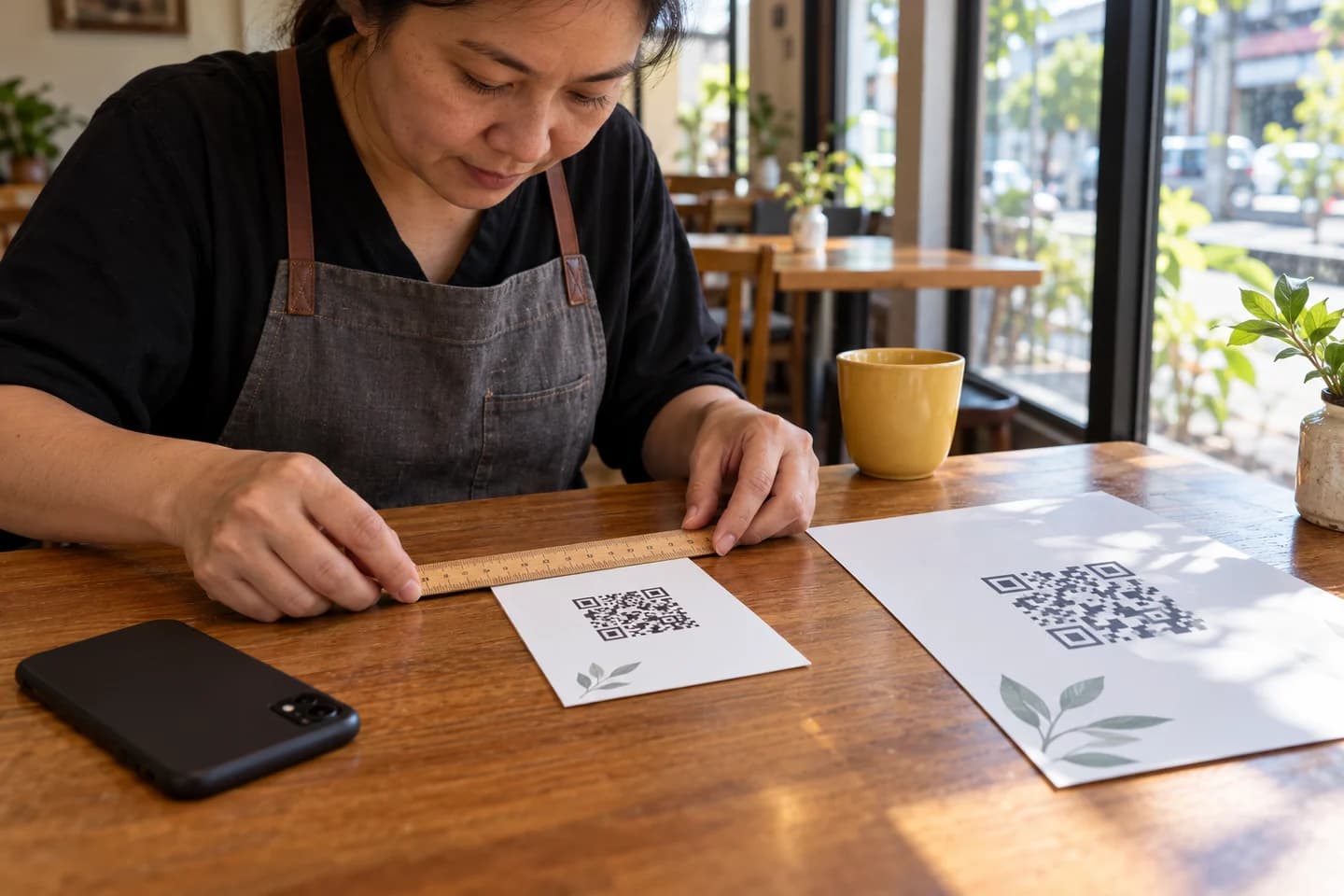
Measure the QR pattern, leave a clear border around it, and test one full-size print where guests will scan it. The size of the card is not the size of its QR code. A large table card can still contain a code that is too small or crowded.
Start with your restaurant's own QR: customize it in the iMango workspace and download the SVG, then prepare one actual-size print. For a first proof, try a 30 mm square pattern at a table or a 60 mm square pattern on a window sign, plus clear space around it. These are starting recommendations, not minimum sizes proven to work on every phone.
Choose the destination before designing the sign
Choose what the guest should do, then download the corresponding QR.
| Where the sign will go | Which QR to use |
|---|---|
| Window, entrance or takeaway counter | The main restaurant QR for browsing the menu. |
| Dining table with staff taking orders | The main QR is suitable when guests only need to view the menu. |
| Dining table with QR ordering | That specific table's QR. Confirm its table name before printing and placement. |
In iMango, the main QR opens the stable restaurant address /r/{restaurantSlug} and remains browse-only. A table QR uses /r/{restaurantSlug}/t/{tableCode}. Ordering also depends on the restaurant's settings, table availability and opening hours. Moving a table's card to another table does not change the table encoded in it.
Use the main QR on a window sign. A table-ordering address belongs at its assigned table. For the service workflow, see QR table ordering without a POS.
A static QR can still open an editable menu
The printed pattern stores an address. If menu content changes at that same address, the QR can stay in place, including when the QR directly encodes the URL. A separate redirect service is not required just to update prices or translations.
A PDF can also be replaced without reprinting when its URL stays the same; that does not make a paper-sized PDF easier to read on a phone. Reprinting becomes necessary when the old address stops reaching the menu and you cannot preserve or redirect it. Compare static and dynamic QR codes if you are choosing how to manage that address.
Customize and download your QR in iMango
Main restaurant QR customization is available on every iMango plan. You can adjust the design and download it directly from your restaurant's QR section.
| Setting | What you can customize |
|---|---|
| Pattern | Square, rounded or dot-shaped modules. |
| Corner markers | Square, rounded or circular corner eyes, separately from the pattern style. |
| Colors | Separate colors for the background, pattern and corner eyes. |
| Restaurant logo | Show your restaurant's logo in the center. Upload it in Settings first if you have not added one. |
| Frame | Add or remove a frame and choose its color. |
| Frame text | Add your own short instruction, up to 32 characters, such as “Scan for menu.” |
Changes appear in the live preview. If you want to start again, Reset to default restores the standard QR appearance. If iMango flags low color contrast, choose darker pattern and corner colors or a lighter background before saving.
- Open your restaurant's QR section. If there is no main QR yet, choose Generate QR code.
- Open Style, Colors, Logo and Frame, and adjust the options you want while checking the preview.
- Choose Save QR appearance to keep the design for your next visit.
- Use Open public menu to check the destination, then choose Download SVG. The download follows the current preview, including unsaved changes, so check that it is the version you intend to print.
The SVG keeps the QR artwork sharp when resized in your print layout. Set its physical dimensions in your design or print tool and retain the clear border described below. Changing the appearance does not change the menu address encoded in the QR.
For table ordering, open Tables, choose the assigned table and download its QR. Table QR downloads keep their standard style; the main QR's appearance settings do not redesign them. Keep each downloaded file paired with its table label while preparing the batch.
Measure the pattern and the quiet zone separately
A QR pattern is made of small squares called modules. The quiet zone is the empty border between the outermost pattern modules and any text, frame or other artwork. DENSO WAVE's code-area guidance requires at least four modules of clear space on every side of a standard QR Code.
Use three measurements when handing a design to the printer:
- Pattern width: the square containing the code itself, including its three large corner markers.
- QR square including the quiet zone: the pattern plus clear space on all four sides.
- Finished card or sign: the complete piece, including headings and the fallback URL.
For a worked sizing example, suppose your QR has a 33 × 33-module pattern. A 30 mm pattern makes each module about 0.91 mm wide. A 4 mm white border on each side is about 4.4 modules, giving a 38 × 38 mm QR square. Doubling those measurements gives a 60 mm pattern, 8 mm borders and a 76 × 76 mm QR square. This is a calculation, not a physical scan result.
Your own URL or export settings may produce a different module count. Recheck the border rather than copying the example's millimeters blindly. DENSO WAVE also explains why module size must suit the printer and scanner; a single physical size cannot cover every device and print condition.
The current standard table QR and main QR without a frame include a one-module border within the exported graphic. Allow additional clear space in your print layout to reach at least four modules on every side. Check the nearest frame or text as well as the edge of the SVG. For a plain 33-module pattern printed 30 mm wide, four modules are about 3.64 mm; an existing one-module border accounts for only about 0.91 mm of that space.
Pick a starting size for the actual placement
| Print proof | Starting dimensions and test position |
|---|---|
| Flat card in a table holder | Finished card: 90 × 140 mm. Pattern: 30 × 30 mm. White border: 4 mm per side. Start checking from a seated position, roughly 30–45 cm away. |
| A5 window sign | Finished sign: 148 × 210 mm. Pattern: 60 × 60 mm. White border: 8 mm per side. Start checking where a guest can stop safely, for example 75–100 cm away. |
Those distances are proposed test positions, not measured scanning limits. If guests must stand farther away, enlarge the pattern and its border together and test that distance. Do not reduce the QR just to fit a decorative frame.
For tables, keep the card visible above plates and condiments, accessible from the guest's seat and away from spills. Use a flat holder that does not bend the pattern. On windows, check from outside: glare, reflections, tinted glass and the holder can change the result. Place the printed face toward the guest and keep it clear of mullions and door handles.
Prepare one actual-size proof
Place the SVG downloaded from iMango in your own card or sign layout. Add your restaurant name, a short scanning instruction and the matching readable menu URL outside the quiet zone. For a table-ordering card, add the assigned table name too.
Print at 100% / Actual size instead of fitting the design to a larger sheet. Measure the pattern with a ruler after printing. Test the finished card or sign through the sleeve, holder or window arrangement you will actually use. For the broader menu setup process, use the restaurant QR menu guide.
Keep contrast, material and labels simple
- Start with a dark pattern on a plain white background. Keep headings, logos, cut lines and frames outside the quiet zone.
- Prefer a matte surface for the first proof. If you need lamination or an acrylic holder, test the final assembly under the actual lights.
- Keep the QR square: do not stretch it, crop it or place a fold through it. Export vector artwork rather than enlarging a screenshot.
- Put a short instruction such as “Scan for menu” above the code and a readable menu URL below it. Keep menu and payment signs clearly labeled.
- If a logo, colored pattern or decorative style makes a scan unreliable, simplify the design and test again. Error correction does not replace the quiet zone or a clean print.
Test one finished print before ordering the batch
Use the final stock, printer, holder and placement. A successful scan from a monitor does not test the print.
- Measure it. Record the pattern width, clear border, finished dimensions and print scaling. Check that the print is sharp and square.
- Use several actual phones. Include an iPhone, an Android phone and an older phone if available. Record model, OS and camera app; use the normal camera first.
- Record the conditions. Measure the camera-to-code distance. Note the angle, daylight or evening lighting, glare and any cover. Test each relevant service condition.
- Separate decoding from loading. First confirm that the camera recognizes the correct URL. Then open it using guest Wi-Fi and mobile data in separate checks. A decoded code with a page that fails to open needs a connection or destination check.
- Verify the menu. Check the restaurant name, languages, prices and, for a table QR, the assigned table and expected ordering availability. A scan alone does not prove the correct table was printed.
- Log failures and retest. Record attempts, recognition failures and loading failures. Change the size, placement or finish when needed, then repeat the affected conditions before approving the batch.
Keep a scan-test record
Download the reusable scan-test sheet. Make a separate entry for each phone, distance and lighting condition. Record the measured pattern and border sizes, the finished sign size, material, phone model and the result for both recognition and page loading.
No physical print or phone tests support the example sizes in this guide as of 21 October 2026. Treat them as starting recommendations and complete the sheet using your restaurant's final QR before commissioning the batch.
Frequently asked questions
What size should a restaurant menu QR code be?
The examples start with a 30 mm pattern for a table card and 60 mm for an A5 window sign, plus the quiet zone. These are proof sizes, not universal minimums. Choose the size for the distance, pattern density and final material, then check it with actual phones in the restaurant.
Does the quiet zone count as part of the QR size?
Specify both measurements. In the table example, the code pattern is 30 mm wide and the square including its white border is 38 mm wide. The full card is 90 × 140 mm. Asking for a “30 mm QR” without stating whether that includes the border can produce a smaller pattern than intended.
Should I print SVG, PNG or PDF?
Use the SVG exported by iMango as vector artwork in your layout. A correctly sized vector PDF is convenient for the print shop. A PNG can work at sufficient resolution and the intended size, but a phone screenshot is a poor print master. Ask the printer for a full-size proof before the batch.
Can I use the same QR on every table and the window?
Yes for browse-only access with the main restaurant QR. For table ordering, use each table's own QR at that table and keep the main QR on the window. The same ordering code on multiple tables would identify the same encoded table.
Will changing menu prices mean reprinting the QR?
No, when the printed address still reaches the same live menu. Editing prices, items or reviewed translations does not change the data printed in the code. If the address changes, preserve or redirect the old URL where possible; otherwise a replacement print may be needed.
Can I customize and download a QR on the free plan?
Yes. Main QR appearance settings are available on every iMango plan, including Free: pattern and corner styles, separate colors, the restaurant logo, frame and frame text. Preview the design and download the SVG in the restaurant's QR section. Table QR downloads retain their standard style.
Prepare your restaurant's print proof
Create or open your iMango menu, download the main or table QR that matches the placement, and make one actual-size proof. Check it at the table or window with your own phones before ordering the full batch. Keep staff assistance and a paper menu available for guests who need them.